DTF Gang Sheet Maker, step by step
One design in, a print-ready DTF gang sheet out, 22 in wide.
Last checked , on a computer and a phone. Free to read, no account needed.
What it costs
1 credit
for the design, at any size and number. Trying it and the preview are free.
A free account gets 25 free credits every month. What is a credit?
You'll need
- A design: a PNG with a see-through background is best. JPEG, WebP or PDF work too.
- A DTF printer or print shop that takes customer gang sheets.
- A heat press for the transfers.
Which file to pick
The gang sheet PNG. Some printers build the sheet themselves: use Single prints for those.
-
Step 1: Open DTF Gang Sheet Maker
Open the DTF Gang Sheet Maker page on a computer or phone. No account needed.
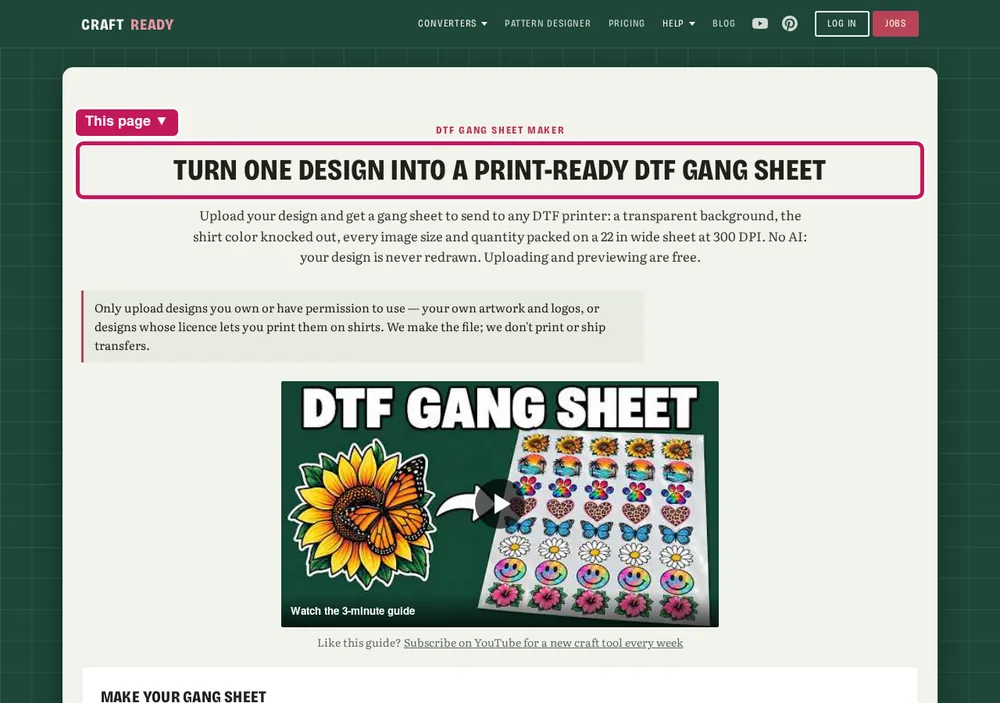
The DTF Gang Sheet Maker page. What you should see nowThe DTF Gang Sheet Maker page, with its name at the top.
-
Step 2: Choose your design
Click Choose file and pick your design from your computer or phone.
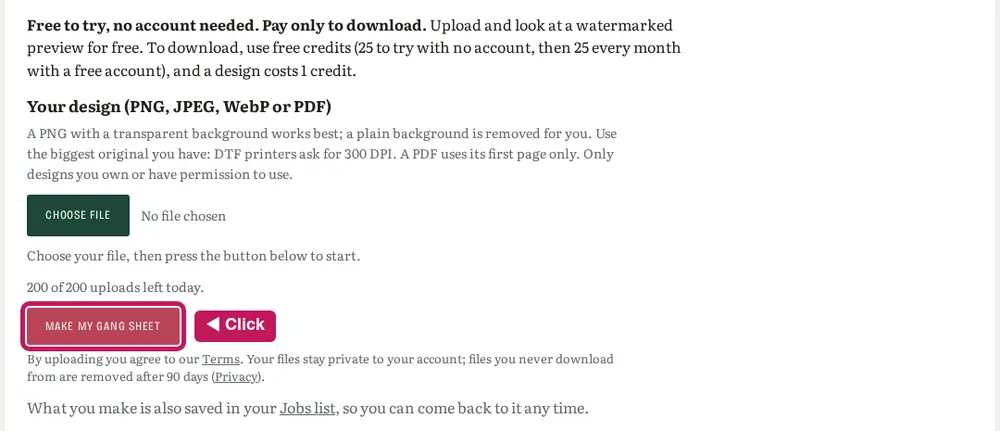
Click Choose file. Before a file is chosen, Make my gang sheet opens the same picker. What you should see nowThe name of your design next to Choose file.
-
Step 3: Start it
Click Make my gang sheet.
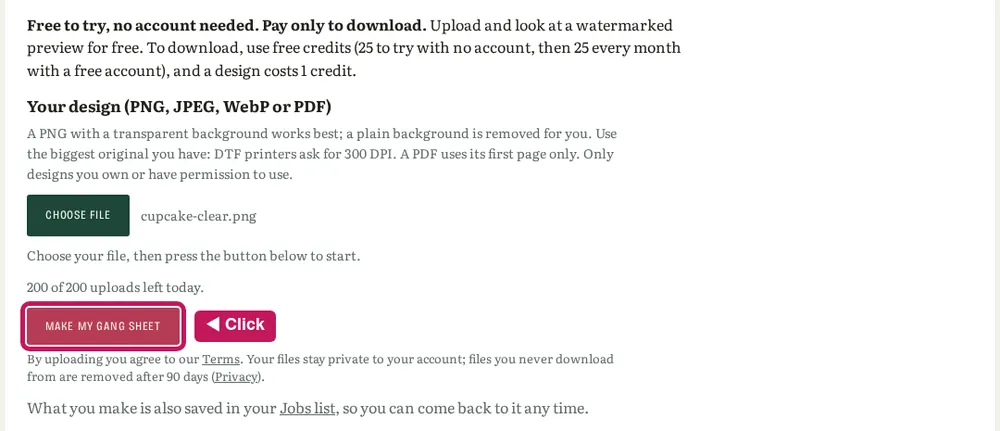
Click Make my gang sheet. What you should see nowA line that says it is starting. Without an account it waits about 30 seconds before it starts: that is normal, nothing is wrong.
-
Step 4: Wait a moment
Leave the page open. It counts down, then reads your file.

Nothing to click: it starts by itself. What you should see nowThe preview opens on the same page by itself.
-
Step 5: Check the background
Leave Background on Automatic, or pick what to knock out. The numbered parts show what will print.
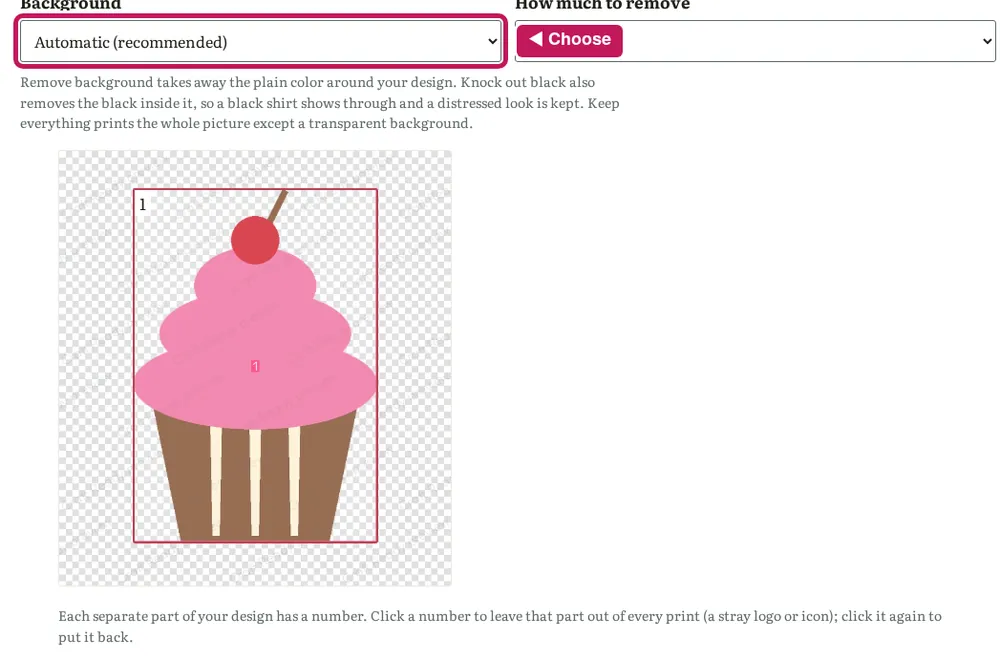
Choose what to knock out (Automatic is fine for most designs). What you should see nowYour design split into numbered parts.
-
Step 6: Set the image sizes
Type the width of each print and how many you want. Click Add another image size for a second size.
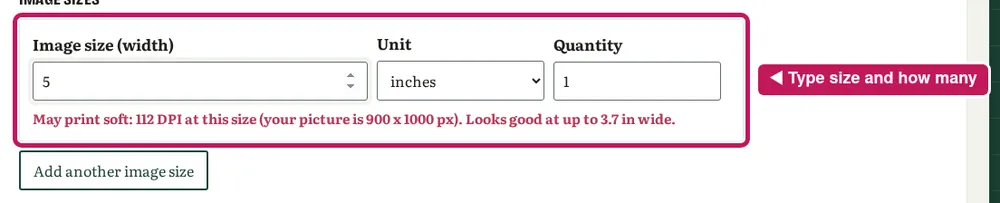
Type the size and how many. What you should see nowA quality line under each size: it warns you if a size will print blurry.
-
Step 7: Check the sheet
Look at the gang sheet preview and the line under it.
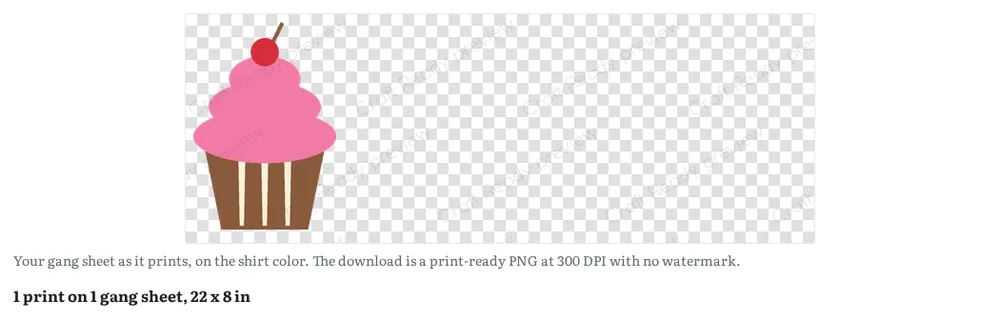
Nothing to click: check the preview. What you should see nowYour prints packed on the sheet, and its length, such as 22 × 12 in.
-
Step 8: Download the gang sheet
Click Gang sheet PNG. The price line above it says what it costs you.

Click Gang sheet PNG. What you should see nowYour browser saves the file, usually to your Downloads folder.
-
Step 9: Find the file
Open your Downloads folder. The file starts with your file's name and ends in .png.
What you should see nowA file like cupcake-clear-dtf-22x8in.png in Downloads. On a phone, it is in the Files app (iPhone) or Downloads (Android).


Open it in your machine's software
Your DTF printer or print shop
There is no cutting software for DTF: the print shop prints the film.
- Upload the gang sheet PNG to a DTF printer that takes customer gang sheets, as it is.
- Order the sheet length the Craft Ready page showed.
- Do not mirror it and do not add a white layer: the printer does both.
- When the transfers arrive, cut them apart and press them with the printer's own time, temperature and peel settings.
Check before you cut
- The size: select one shape in your software and compare its width (in mm or inches) with the size Craft Ready showed.
- Closed shapes: each piece should be one solid shape with no gaps in its outline.
- A test cut: cut one small piece from scrap first, then the real material.
- The sheet length: order the length the page shows.
If it goes wrong
- A size says it will print blurry
- Make that size smaller, or upload a bigger picture.
- The black background would print
- Choose Knock out black in Background, or upload a PNG with a see-through background.
- A stray part is on the sheet
- Click its number in the parts picture to leave it out.
- The printer asks me to mirror it
- Don't: the printer mirrors the film and adds the white layer itself.
Still stuck? Ask us.