Check an SVG for cutting problems (free)
Choose one SVG at the top of this page and click Check for problems. In a few seconds you get a list of what would go wrong when the file is cut. The check is free, needs no account, and the file isn't kept.
What the check looks for:
- Lines drawn twice, which the cutter would cut twice.
- Open shapes: outlines that stop just short of closing, filled shapes that aren't closed, and outlines made of many separate line pieces (common in files from CAD and laser software).
- Too many points: Cricut Design Space can refuse a file this detailed, saying it is too complex or “Image Not Saved”.
- Specks and invisible shapes that would still be cut.
- A background rectangle that would be cut as one solid block.
- Same-color shapes that share an edge and would cut as separate pieces instead of one.
- Gradients and see-through shapes, which Design Space shows as black or solid.
- Live text and pictures inside the SVG, which can't be cut as they are.
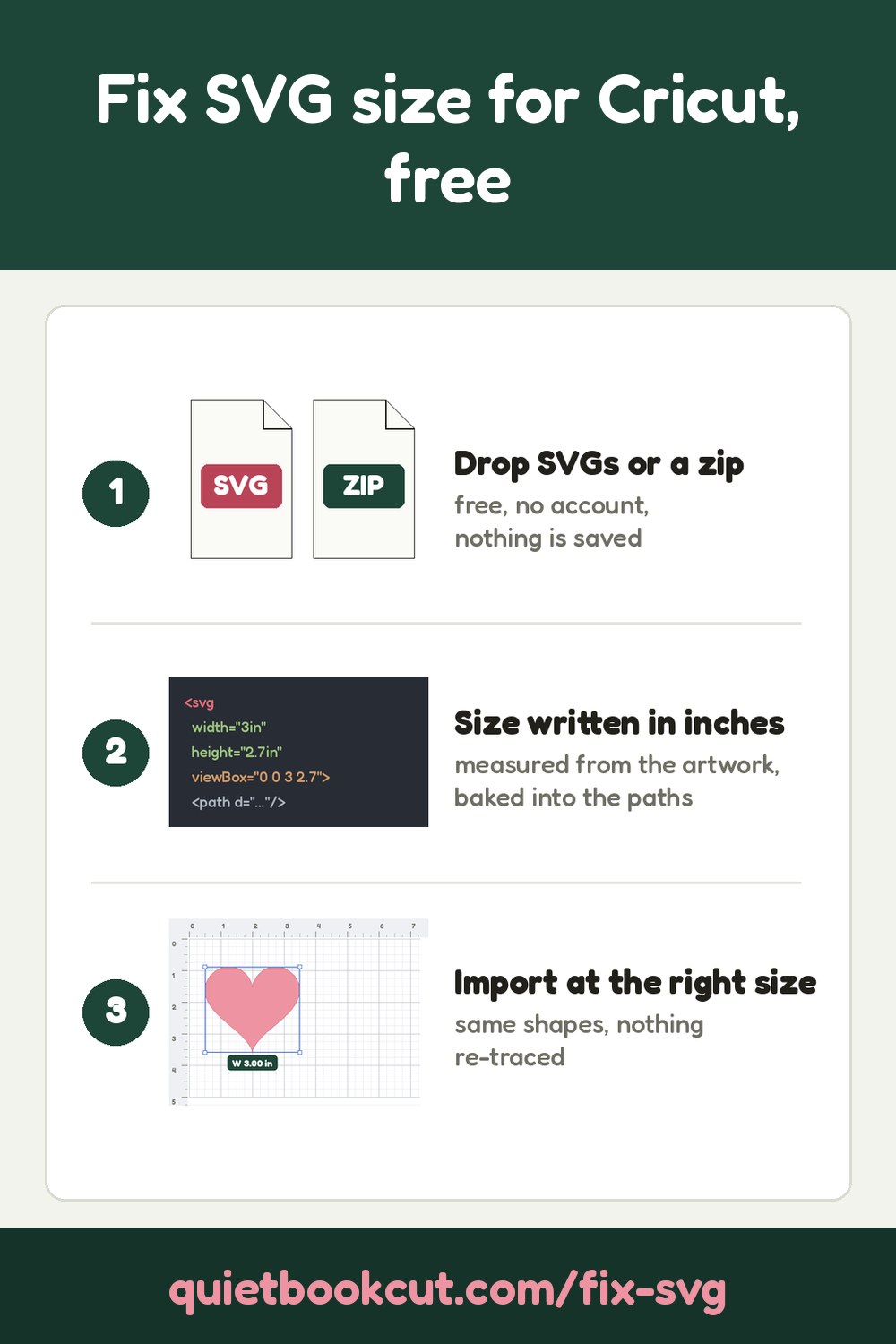
- The size the file imports at, including files sized in pixels, which Cricut Design Space reads a third bigger than a web browser does.
Repair a broken SVG
When the check finds problems we can fix, Repair this file makes a clean copy and shows you a preview with a list of what was fixed. The repair:
- removes doubled and overlapping lines, so each line is cut once;
- joins line pieces that meet end to end into continuous lines;
- closes gaps up to the distance you choose (0.5 mm to start with, 2 mm at most), and rings each one on the preview;
- joins same-color shapes that touch into one piece (you can keep them separate);
- leaves out specks too small to cut and a white background rectangle (you can keep either);
- gives gradients and see-through shapes the solid color they really look like;
- smooths away points the cutter doesn't need, and shows the number of points before and after;
- writes an SVG for Cricut Design Space and a DXF for Silhouette Studio, Brother CanvasWorkspace and laser software, at true size or at the width you type.
What it doesn't do: it doesn't trace pictures (Image to SVG does that), it doesn't turn live text into outlines (do that in your design app first), it doesn't merge colors that are only nearly the same, it leaves clipped shapes whole, and it leaves rows of short dashes (score and perforation lines) as dashes. A very detailed tracing can still be too heavy for Design Space after a repair: the page tells you before you pay, and stronger smoothing makes the file lighter.
A repair needs a free account. Uploading a file and looking at the preview are free. Downloading costs 5 credits per file, taken from your free monthly credits first (a free account gets 25 free credits every month). After that, every option and both file types of the same file are free, and the repaired file is kept in your Jobs list for 90 days. Only upload designs you own or have permission to use.
Frequently asked
- Why does Cricut Design Space say my SVG is too complex or Image Not Saved?
- Design Space refuses files with too many points. In our tests it took a file of about 28,000 points and refused one of about 81,000. Traced artwork and files exported from laser or CAD software are often far heavier than they look. The free check counts the points in your file. A repair removes doubled lines and smooths the outline to bring the count down, and shows the new count before you pay. A very detailed tracing can still be too heavy after a repair: the page says so, and stronger smoothing makes it lighter.
- Why does my cutter cut the same line twice?
- The line is in the file twice, one copy on top of the other. On screen it looks like one line, but the blade or laser follows both. It happens when shapes are copied in place, or when a file is exported from laser or CAD software. The check counts the doubled line segments and the repair keeps one copy of each.
- What are open shapes, and why do they matter?
- An open shape is an outline whose ends don't quite meet, or one drawn as many separate little lines. The cutter lifts the blade at every break, pieces don't come out whole, and design software can't fill them. The repair joins line pieces that meet end to end and closes gaps up to the distance you choose. Every gap it closes is ringed green on the preview, and any gap wider than your setting is ringed red. Rows of short dashes, like score and perforation lines, are left as dashes.
- My SVG has a picture inside it. Can it be cut?
- Not as it is. A picture (a PNG or JPG placed inside the SVG) is made of pixels, not lines, so a cutter has nothing to follow. If the file is only a picture, the check offers to send it to Image to SVG, which traces it into cut-ready color layers. If the file has cut shapes and a picture, the repair keeps the shapes and leaves the picture out.
- Why do I have to turn text into outlines first?
- Live text is stored as letters plus the name of a font, and the letter shapes exist only on a computer that has that font. We don't have your fonts, so we can't draw the letters for you. In Design Space, Inkscape or Illustrator, convert the text to outlines (also called paths or curves), save the file again, and check it again.
- Will the repair change my design?
- It keeps the look of the design and changes how it is stored. Lines are cut once, outlines are closed, same-color shapes that touch become one piece, specks too small to cut and a white background rectangle are left out, and gradients and see-through shapes get a solid color. Curves become short straight steps, which is how cutters trace them. The preview shows the result before you pay, and the options let you turn each fix up, down or off.