How Craft Ready works
Pick the tool for the file you have. Upload it, check the free preview, and download the cut file when it looks right.
Which tool do I need?
A sewing, appliqué or quiet book pattern (a PDF, scan or photo)? Pattern PDF to SVG traces every piece and sorts it by color →
A papercraft template (a PDF or a picture) with cut and fold lines? Papercraft to Cut File cuts and scores it on your cutter →
A leather pattern with lacing holes and stitch lines? Leather Pattern to Cut File makes true-size cut files →
A logo, clip art or picture to cut in layers of color? Image to SVG makes a layered color SVG →
Black line art (a drawing, tattoo flash or coloring page) to cut from vinyl? Line art to vinyl turns it into one vinyl decal →
A layered SVG whose colors are stacked, so each color cuts whole under the ones on top? Knock Out Layers cuts each color only where it shows →
Stickers from a picture, each with a white border to cut round? The sticker maker makes a Print Then Cut sticker sheet →
DTF transfers of one design in a few sizes, to press on a stack of shirts? The DTF Gang Sheet Maker makes a print-ready gang sheet →
An SVG that won't cut right: it imports at the wrong size in Cricut Design Space, cuts the same line twice, has shapes that won't close, or is too complex? Fix SVG fixes the size free, checks it free, then repairs it →
A photo of something knitted or crocheted? The Pattern Decoder writes a pattern for it (free, experimental) →
No pattern yet? Draw your own pieces and lay out the pages. Design it in the Pattern Designer →
Pattern PDF to SVG walkthrough
A real pattern going through Pattern PDF to SVG, start to finish: this is exactly what you'll see.
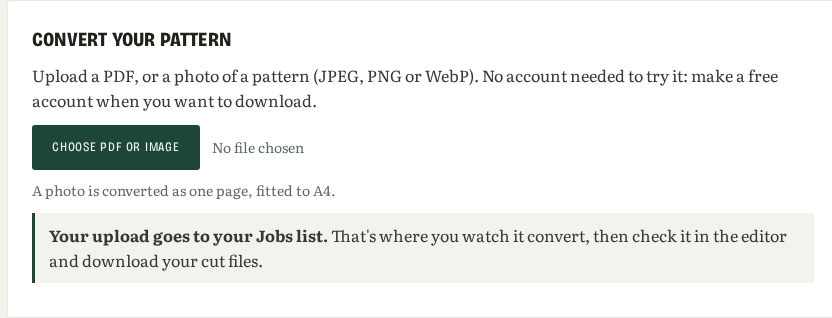
Upload your pattern
On the Pattern PDF to SVG page, choose a PDF, a scan or a phone photo (JPEG, PNG or WebP) of your pattern — hand-drawn lines, handwritten color notes, coffee rings and all. No cleaning it up first.
A PDF keeps your pattern's real size best: your scanner will likely scan to PDF. A photo is fitted to an A4 page, so check the size before you cut.
No account needed to try it: make a free account when you download.
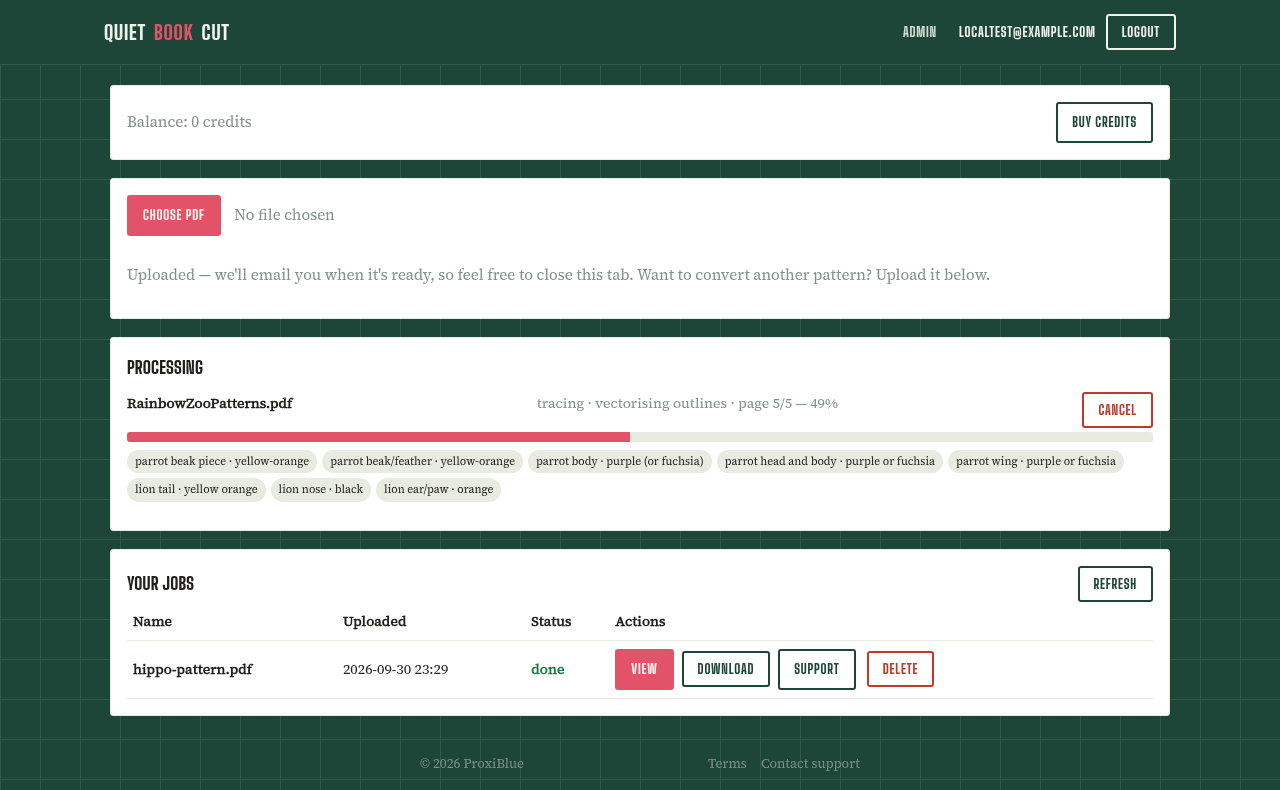
Watch it find every piece, live
No spinner, no guessing — a running feed shows each piece as it's identified, straight off the page: "parrot wing · purple or fuchsia", "lion tail · yellow orange"…
Most patterns finish in a few minutes. Close the tab if you like — we'll email you when it's ready.
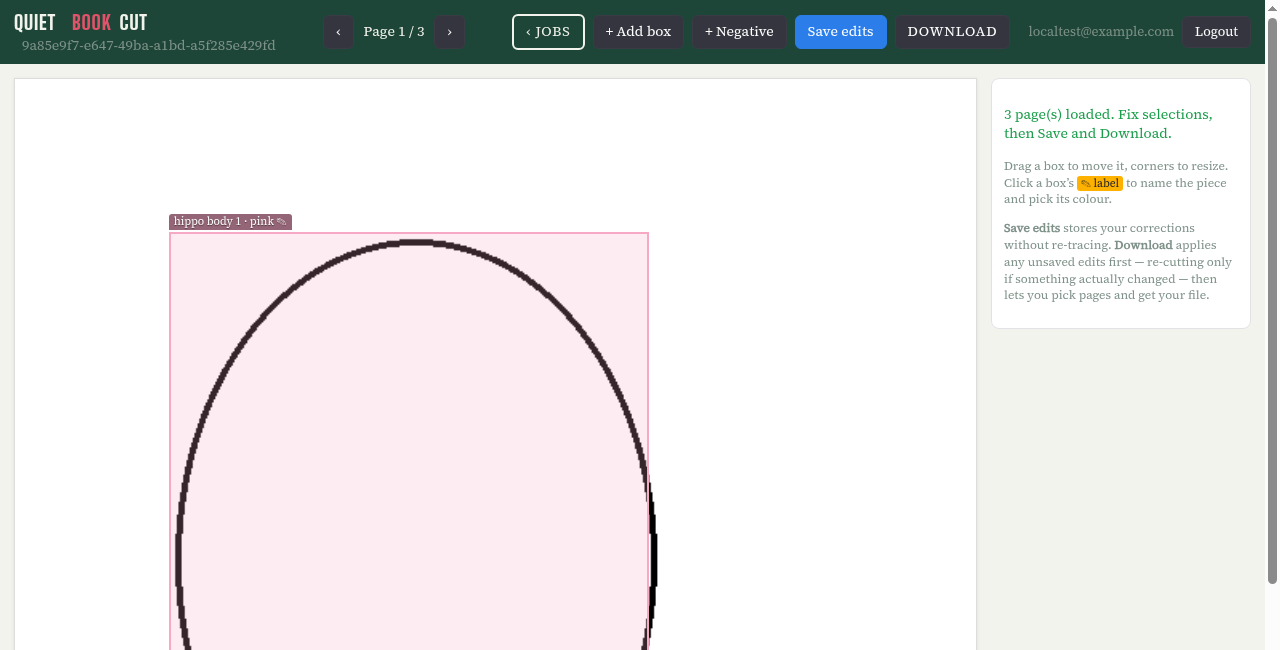
Fix anything that needs it
Drag a box to move or resize it, relabel a piece, or draw a negative box to mask out a stray mark. Most patterns need no changes at all — this is just there for the occasional stubborn page. Full editor reference →
Converting is always free. If a whole page comes out badly wrong, or has more defects than a quick fix can reasonably cover, open a support ticket with a screenshot — you'll get a download credit refund for any credits spent on that download.
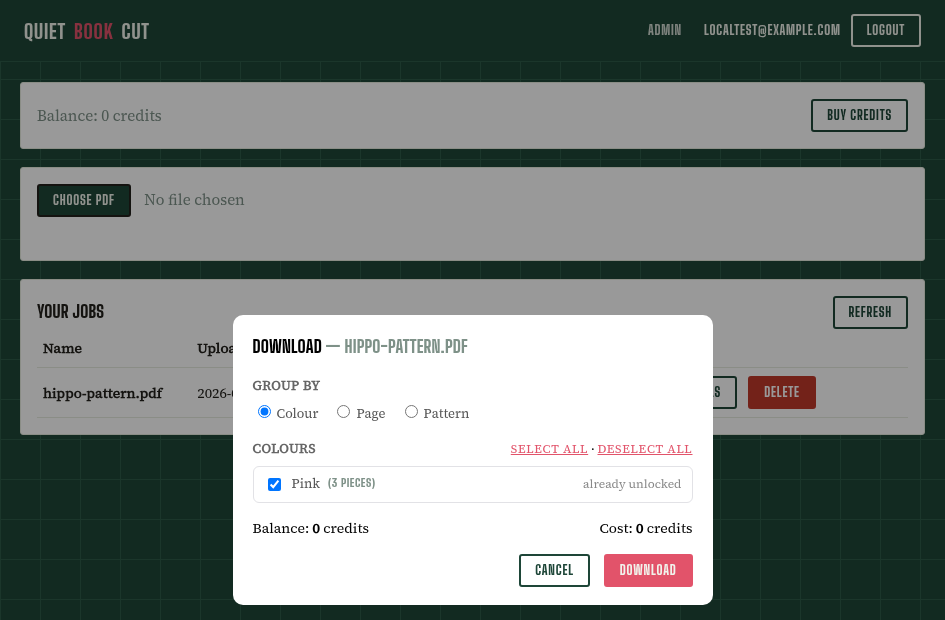
Download, grouped your way
By color (the default — everything you'll cut from one sheet, together), by page, or by pattern. Pick exactly which groups you want, hit download, and watch real progress while it re-traces — no guessing whether it's stuck.
Preview your pattern
Not sure what you're about to cut? On the jobs page, every finished job has a Preview button. It opens your pattern as a little flip-book: one page at a time, every piece drawn as felt in its own color, at its real size and place on the page. Flip pages with the arrow buttons, the left and right arrow keys, or a swipe on a phone or tablet. Press Esc to close.
Under each page you'll see its pieces, each with its color and material. A piece with an AI note gets a number on the page and its note in a list below it; the note itself is only drawn in the photo. To show a detail such as a zipper mouth or a bell nose, draw a box around it in the correction editor and tick Preview only: it shows on the preview and in the photo of the piece under it, but is never cut or charged (more). Pick a piece and choose Photo-realistic view to get an AI photo of that piece as real stitched felt, which you can download.
Previewing is free and doesn't use credits. A photo counts toward your daily limit of AI actions.
- Import anywhere. Download as SVG (Sure Cuts A Lot, Cricut Design Space, Silhouette Studio Designer Edition and up) or DXF (Silhouette Studio Basic, Brother CanvasWorkspace for ScanNCut, and most other cutters), or as printable paper templates to cut by hand. In Silhouette Studio, set Preferences → Import → DXF Open to Centered before opening a DXF: its default, Fit to Page, resizes it.
- Not only felt. Any pattern drawn as line art comes out as clean cut files, whatever you cut it from. For vinyl, papercraft, stickers and leather there is a tool made for each one: see the list above.
- Pay once, keep it. Every piece you unlock is yours to re-download any time — next month, next year, no re-buying.
- Recolor without re-cutting. Changed your mind on a color? Fix one piece in the correction editor and apply it to every matching piece at once.
- 🧵 Check your fabric needs anytime. Every finished job has its own Materials button on the jobs page — a rough shopping-list estimate per color, independent of what you've downloaded so far.
Questions
- Where is QuietBookCut?
- QuietBookCut is now Craft Ready: same tools, same account, credits and jobs (you may need to log in once on craftready.store). The name changed because the site now makes cut files for much more than quiet books. The Android app keeps working, and old links still work and bring you here.
- Which tool should I use?
- Start from the file you have: a pattern, a picture, an SVG or a photo. The list above names the tool for each one.
- What does it cost?
- Uploading and previewing are free, and every account gets 25 free credits every month. A pattern piece from Pattern PDF to SVG takes 1 credit; a file from most other tools takes 5 credits. Fixing an SVG's size and the Pattern Decoder cost nothing. Once you've unlocked a file, you can download it again for free.
- Do I need an account?
- Not to fix an SVG's size. Most tools need a free account to upload a file, and Pattern PDF to SVG lets you upload and preview first. To download a cut file you need an account with a confirmed email. No card is needed to sign up.
- Which file type do I use for Cricut Design Space?
- SVG. Use DXF for Silhouette Studio Basic, Brother CanvasWorkspace and laser software.
- My SVG imports at the wrong size in Cricut Design Space. Why?
- Design Space reads sizes set in pixels differently from the program that made the file. See why it happens, or fix the size free.
- Can I upload a pattern or design I bought?
- Only files you own or have permission to use, for your own crafting. The terms explain it for each tool.
- Something came out wrong. What now?
- Most tools let you change the settings and preview again for free. If it still looks wrong, contact support with a screenshot.
Got a file to cut?
Uploading and previewing are free, and every account gets 25 free credits every month — no card required to try it.
Pick a converter